
Guide
How to Set Up CorePass as Your Passkey Provider
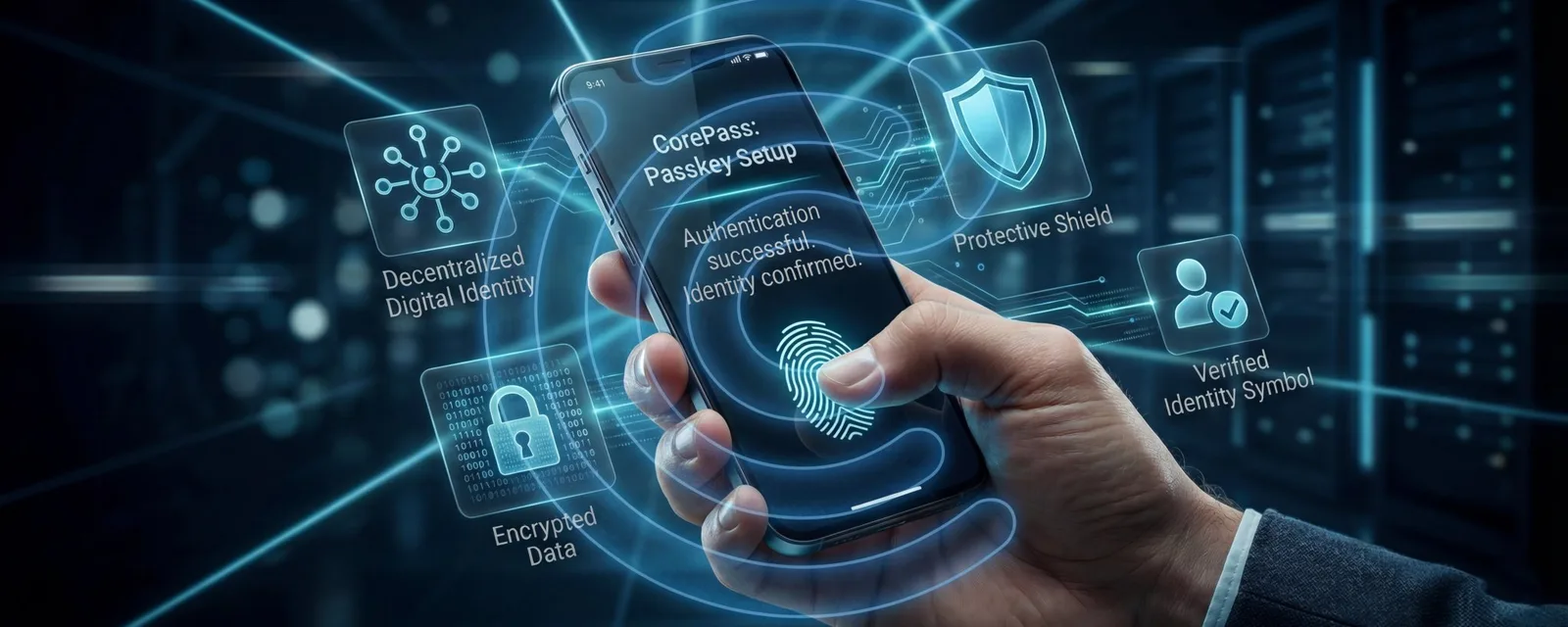
No password. Just you. Here's how to set up the most secure login in the world.
CorePass has reached a milestone with its Passkey update. For the first time, you can log into platforms like Amazon, PayPal, Binance, Facebook, and many more using your decentralized identity. Completely passwordless.
The feature works. It's live. And it's unique.
The setup is pretty much self-explanatory, but we want to make sure everyone in the community can get started as easily as possible. That's why we created this guide: covering both iOS and Android, step by step.
💡 CorePass isn't just another password manager. It's the world's first decentralized Passkey provider with Identity Enrichment. Your identity data stays with you, not on someone else's server.
What Makes the CorePass Passkey Different?
Before we walk through the setup, an important distinction: The CorePass Passkey is not the same as a Google or Apple passkey. It's fundamentally different. And more secure.
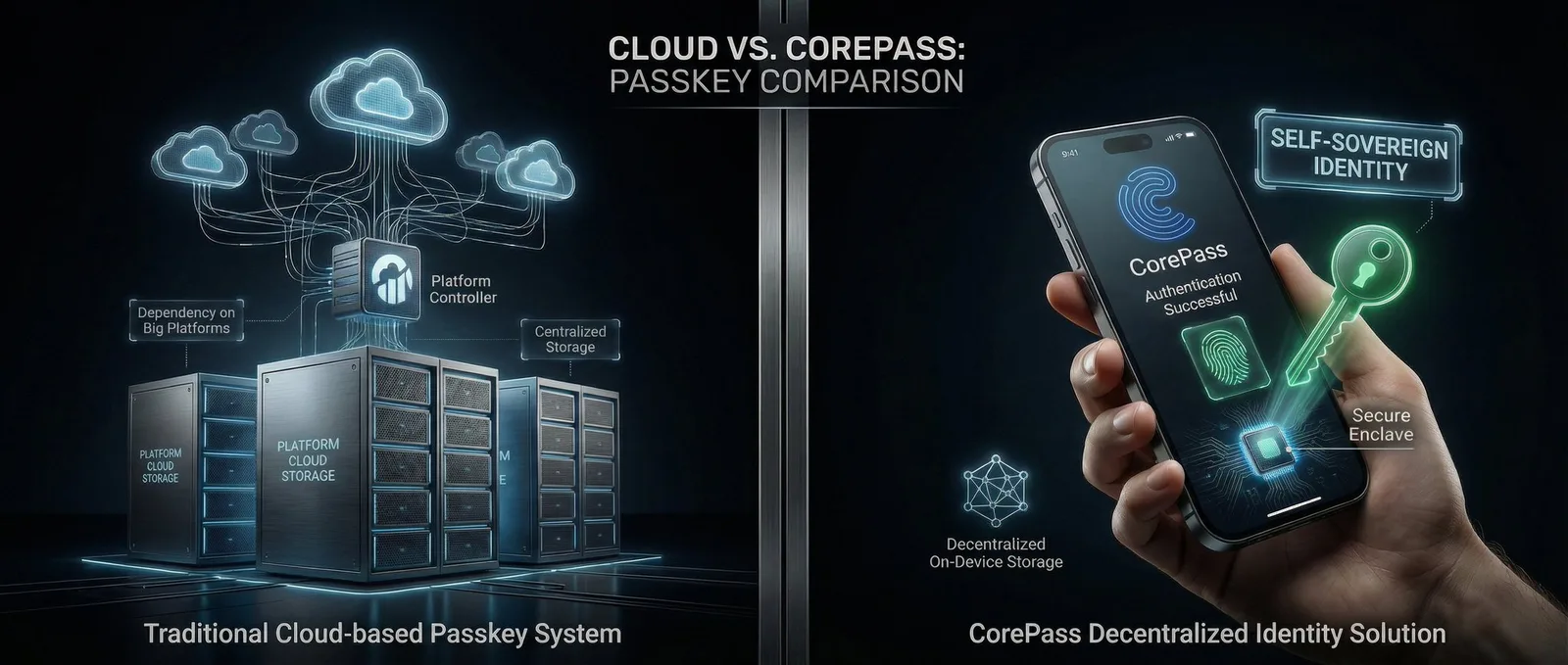
Decentralized, Not Centralized
With Google or Apple, your passkeys are stored in their cloud. iCloud Keychain, Google Password Manager. You're trusting a company. With CorePass, your private key lives exclusively on your device. No server has access. No company can view your data.
Identity Enrichment: Only with CorePass
CorePass goes beyond a simple login. When a platform supports it, the CorePass app can submit a signed identity payload after passkey registration, secured with Ed448 Elliptic Curve Cryptography. That's one of the strongest encryption methods available today.
Whether and which data is shared is determined by the platform. It can request verified information, for example your Core ID, email, age verification, or KYC status. All without requiring you to verify separately on each platform.
Enrichment is not automatic. It's an optional step that the platform can specifically enable. The platform knows you're real without permanently storing your documents.
What Does This Mean in Practice?
- No password. You authenticate with fingerprint or facial recognition.
- No central server. Your key never leaves your device.
- Verified identity. Platforms can check your KYC status without seeing your documents.
- Phishing-resistant. A passkey only works on its registered domain. Fake sites have zero chance.
🔐 In short: CorePass combines passwordless login with decentralized identity and verified data sharing. No other passkey provider offers this.
What You Need Before Starting
Make sure you have the following:
- A smartphone running Android 14 (or newer) or iOS 17 (or newer; iOS 18 recommended)
- The CorePass app updated to the latest version (Google Play Store / Apple App Store)
- Biometrics enabled: Fingerprint or facial recognition, both on your device and within the CorePass app
- A screen lock (PIN, pattern, or password) set on your device
Part 1: Activate CorePass as a Passkey Provider (Android)
On Android, CorePass isn't automatically recognized as a passkey provider. You need to enable it once in your system settings.
- Open your phone's Settings app.
- Navigate to Passwords, passkeys & accounts. The exact path may vary by manufacturer, see "Manufacturer-Specific Paths" below.
- Tap the currently selected password manager and choose CorePass from the list.
- Make sure the toggle next to CorePass is enabled, so passkeys are automatically suggested during login.
- Optionally, set CorePass as your Preferred service so it's always offered first.
- Make sure fingerprint or face recognition is enabled on your device.
📌 Important: Android 14 is the minimum requirement. Older Android versions do not support third-party passkey providers.
CorePass Not Showing in Your Browser?
If CorePass doesn't appear as an option when logging in via Chrome, you may need to enable a Chrome flag. Open `chrome://flags` in your address bar, search for "third party passkeys", and set the option to Enabled. Then restart Chrome.
Manufacturer-Specific Paths
Settings menus vary by manufacturer:
- Samsung: Settings → General Management → Passwords, passkeys, and autofill
- Google Pixel: Settings → Passwords & Accounts → Passwords, passkeys, and autofill
- Xiaomi / MIUI: Settings → Passwords & Security → Passwords and autofill
- OnePlus / OxygenOS: Settings → Passwords & Security → Autofill services
Tip: If you can't find the menu, use the search function in Settings (magnifying glass icon) and search for "Passkey" or "Autofill".
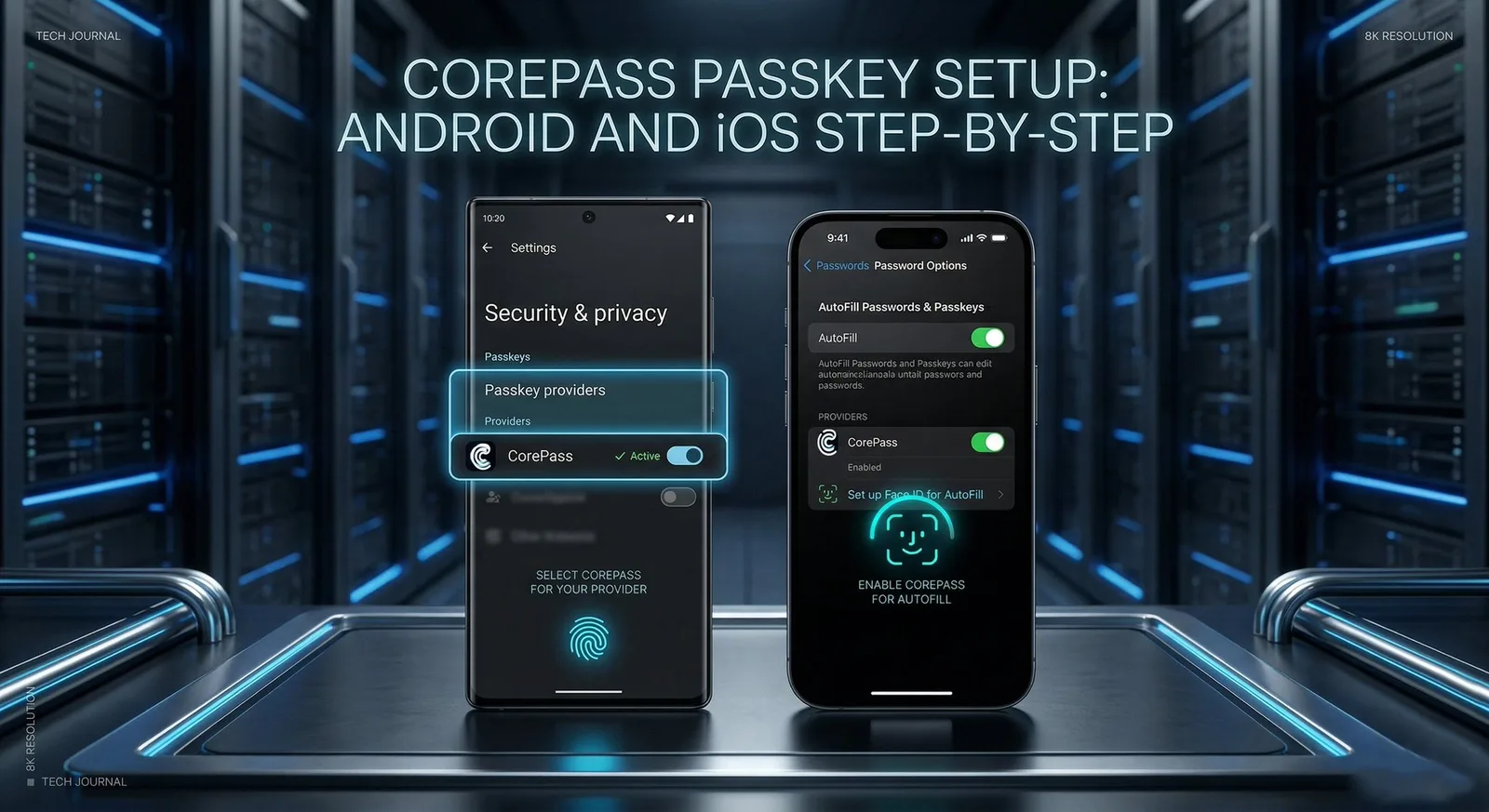
Part 2: Activate CorePass as a Passkey Provider (iOS)
For iOS 18
- Open Settings on your iPhone.
- Go to General → AutoFill & Passwords.
- Make sure AutoFill Passwords and Passkeys is toggled on (green).
- Under AutoFill From, you'll see a list of available providers.
- Toggle on CorePass.
- Open the CorePass app → Settings → make sure Face ID is enabled there.
For iOS 17
- Open Settings on your iPhone.
- Go to Passwords → Password Options.
- Enable AutoFill Passwords and Passkeys.
- Under "Allow Filling From", enable CorePass.
📌 iOS 16 and earlier: Passkeys are stored exclusively in iCloud Keychain. Third-party providers like CorePass require iOS 17 or later. You'll need to update your operating system.
Part 3: Create Your First Passkey
Once CorePass is activated as a provider, you can create your first passkey on a supported platform.
- Open a platform that supports passkeys, for example Amazon, PayPal, Binance, or Facebook.
- Go to the security settings of your account on that platform.
- Look for the option "Add a passkey" or "Create a passkey".
- Your device will show the available passkey providers. Select CorePass.
- Confirm with fingerprint or face recognition.
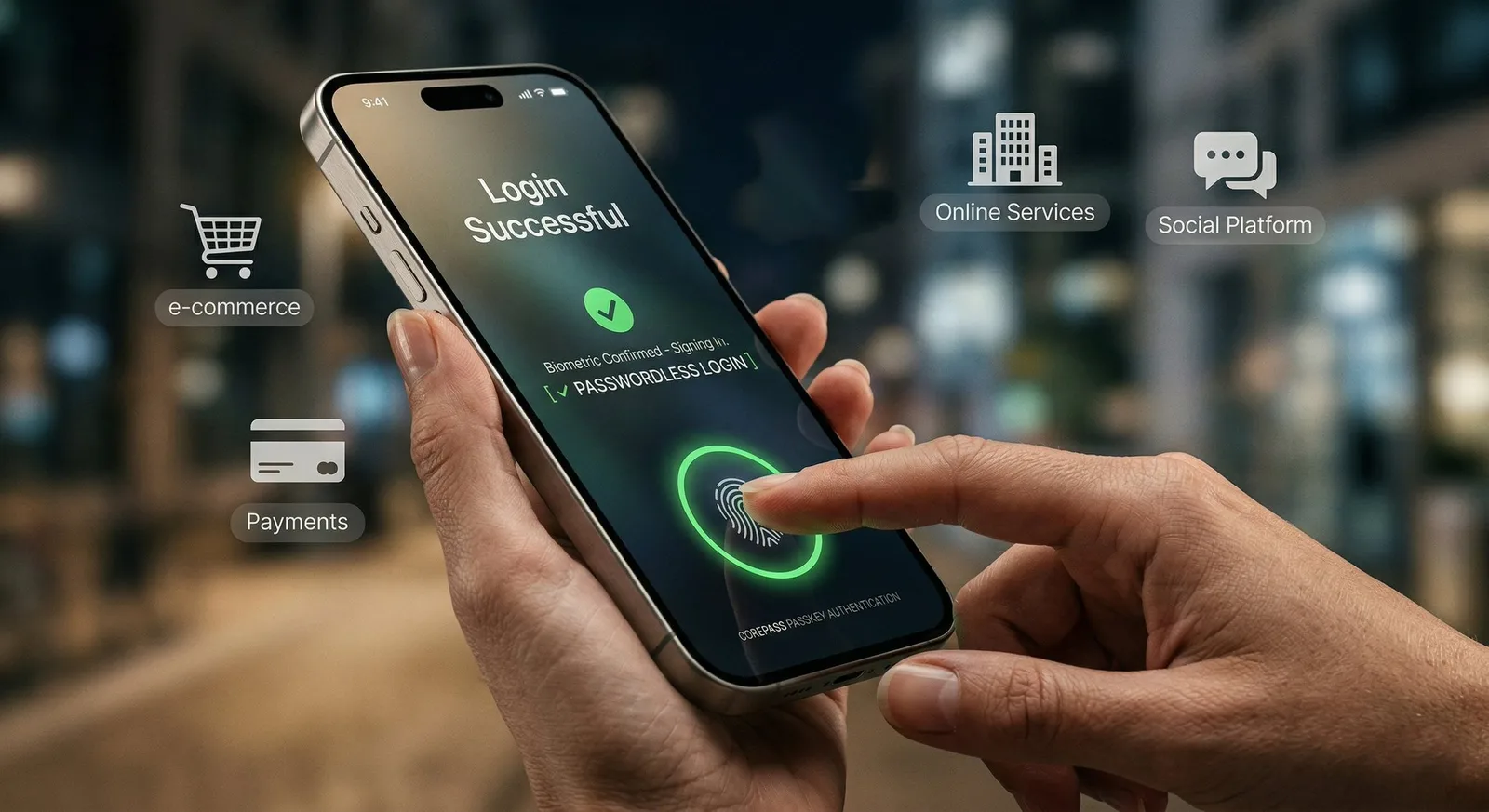
- Done. Next time you log in, simply choose the passkey option and authenticate biometrically.
💡 You won't be asked for a password anymore. Your device automatically recognizes that a CorePass passkey exists for that site and offers passwordless login.
Frequently Asked Questions
Does the passkey work if I switch phones?
Yes. Your CorePass backup file contains all the important data needed for recovery. Restore the backup on your new device and then register a new passkey. That's why keeping a regular backup is so important.
Do I still need my seed phrase?
Yes. The seed phrase secures your entire CorePass portfolio. The passkey is a login method, the seed phrase is your backup for the assets.
What if a platform doesn't show CorePass as an option?
Check that you've correctly activated CorePass as a passkey provider in your system settings (see Part 1 and 2). Also verify that the platform actually supports passkeys.
Can I have multiple passkeys for different platforms?
Yes. You create a separate passkey for each platform, all managed through CorePass.
Is this really more secure than a password manager?
Significantly. Password managers store passwords, which can be stolen. A passkey is based on public-key cryptography: your private key never leaves your device. And with CorePass, the decentralized architecture means there's no central server that could be hacked.
Don't Forget Your Backup
This is a good time to update your CorePass backup:
- Open the CorePass app → Settings.
- Scroll down to "Make a backup now".
- Select "This device" as the storage destination.
The backup file is encrypted and can only be read by the CorePass app. You don't need to be able to open it, just store it safely.

Want to Learn More?
If you want to dive deeper into how the CorePass Passkey works and what makes it unique, check out our podcast episode and the CoDeTech shorts:
🎙️ CorePass Passkey — Podcast Episode on YouTube
Conclusion
The CorePass Passkey is more than just a login. It's the combination of passwordless authentication with decentralized identity. Something no other passkey provider offers.
While Google and Apple manage your passkeys in their cloud, CorePass gives you full control. Your data. Your device. Your decision.
The setup requires a few more steps than a traditional password manager, but the result is a login system that's not just more convenient, but fundamentally more secure.
Welcome to the future of authentication.
Found this guide helpful? Share it with someone who hasn't set up CorePass yet. The more people on board, the stronger the network becomes.
Resources & Links
- 🌐 CorePass: corepass.net
- 📱 Google Play Store: CorePass ID
- 📱 Apple App Store: CorePass ID
- 🔗 Core Blockchain: coreblockchain.net
- 🎙️ Podcast Episode: YouTube
Tags: CorePass, Passkeys, Core Blockchain, Digital Identity, Decentralization